

Settings
Configure your personal preferences, encryption keys, and integrations.
The Settings page is divided into sections accessible from the left navigation. Admins see additional sections not visible to regular users.
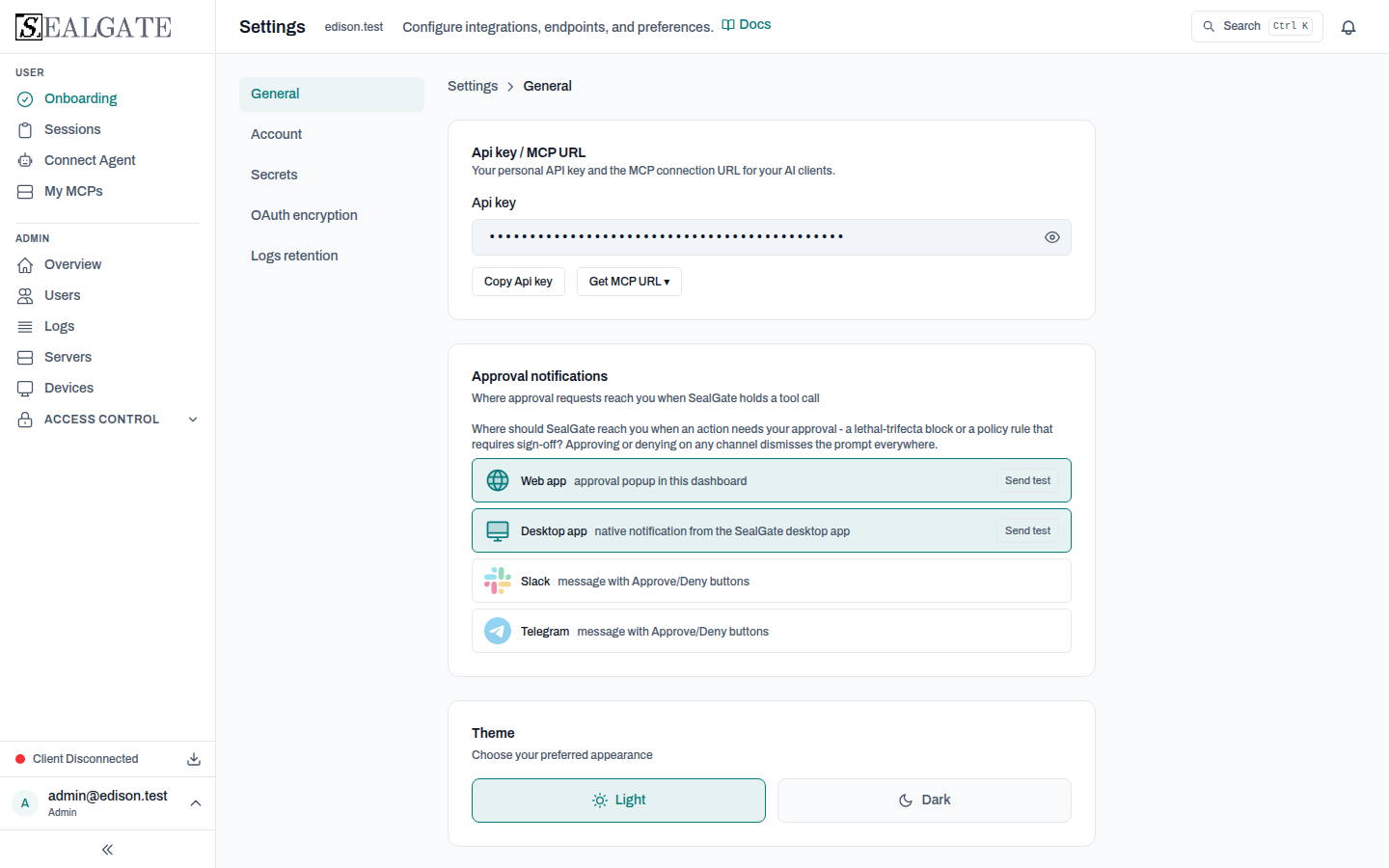
General
Api key / MCP URL
Your personal API key and the MCP connection URL you hand to agent frameworks. Copy the URL from here rather than constructing it manually. See Connect an Agent for the URL anatomy.
Approval notifications
Where SealGate reaches you when it holds a tool call for human sign-off - both lethal-trifecta blocks and policy rules with require_approval. Configure the channels you want:
| Channel | Default | Notes |
|---|---|---|
| Web app | On | Popup in the SealGate dashboard. |
| Desktop app | On | Native notification from the desktop app. |
| Slack | Off | Approve/Deny buttons in a channel or DM; enter a Slack channel or DM ID to enable. |
| Telegram | Off | Approve/Deny buttons in a linked Telegram chat; click Connect Telegram to pair via the SealGate bot. |
Each enabled channel has a Send test button. Approving or denying on any channel dismisses the prompt everywhere. See Managing Approvals.
Theme
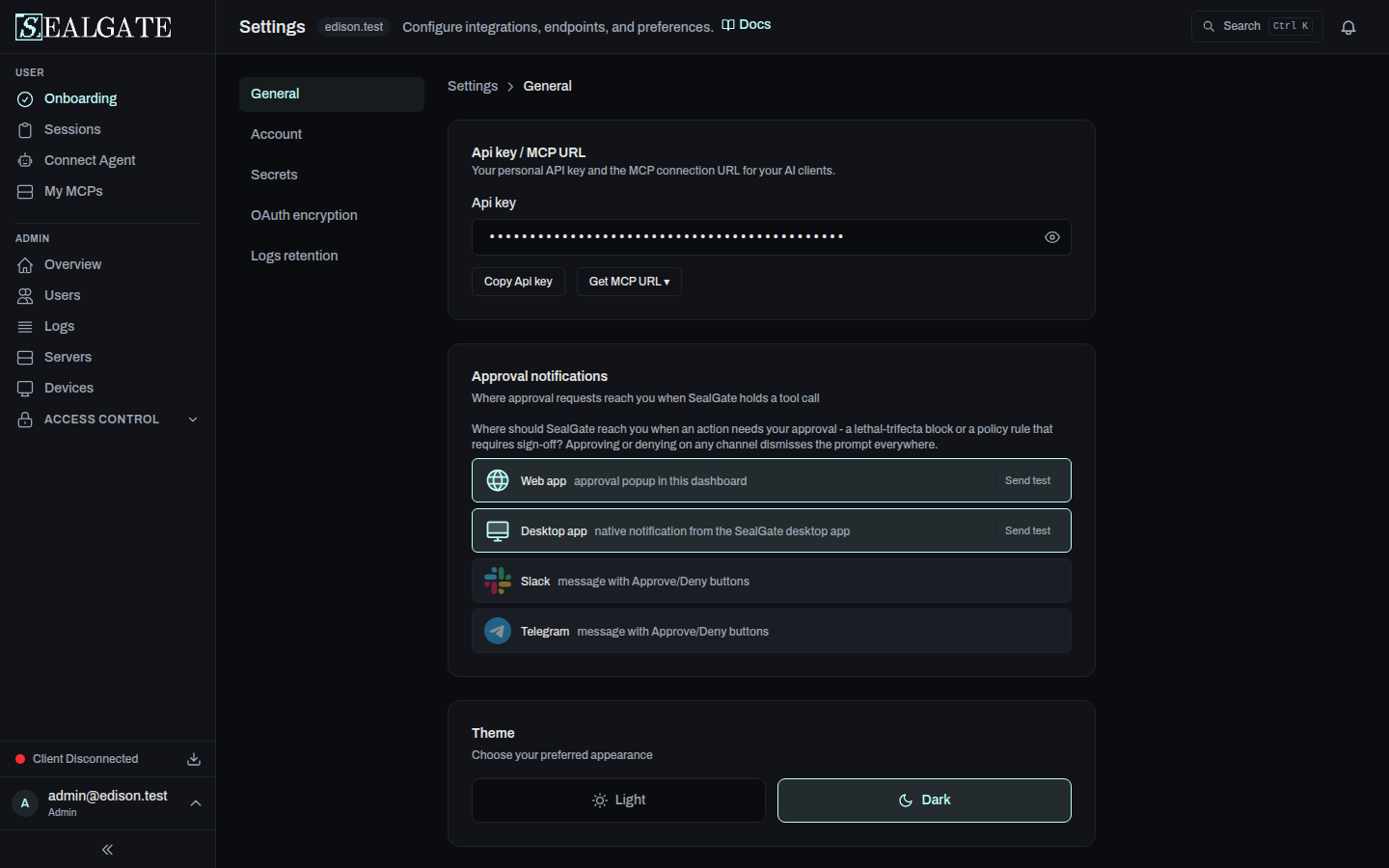
Choose between Light and Dark appearance. Your preference is saved locally in the browser.
Organisation Display Name (Admins only)
Set the human-readable name shown for your organization in the dashboard.
MCP Auto-Quarantine (Admins only)
Toggle whether newly detected MCP servers are automatically quarantined in the desktop client until an admin approves them. Controlled by the org-level auto_quarantine_other_mcp_servers setting. See MCP Quarantine for the full flow.
Lethal Trifecta Protection (Admins only)
Turn enforcement of the lethal trifecta on or off for your organization. Tracking of the three legs (private data, untrusted content, external comms) is always on and shows up in Sessions and your SIEM; enforcement - blocking or holding the completing write for approval - is a separate switch that is off by default. Toggle it from the Lethal Trifecta Protection card on the Guardrails page (the org-level lethal_trifecta_blocking_enabled setting; applies to every user in the org). Run in monitoring mode first to see where the trifecta fires, then enable enforcement.
Session
Displays your current email address and role. Click Sign Out to end your session.
Secrets
Personal Encryption Key
SealGate uses zero-knowledge encryption to protect your MCP server credentials. Your personal key never leaves your browser - SealGate only stores a hash.
| State | Description |
|---|---|
| Not set up | No key registered yet. |
| Not verified | A key is registered on the server but hasn't been loaded in this browser session. |
| Active | Key is registered and cached in this browser. |
Setting up a new key:
- Click Generate a new key - SealGate generates a 256-bit key in your browser and registers its hash.
- Save the key somewhere safe (password manager). It will not be shown again.
Using an existing key: Click I already have a key and paste your key to verify it in this browser.
Key management:
- Roll Key - Generates a new key and re-encrypts your credentials.
- Reset Key - Removes the key and all associated encrypted data.
Organization Encryption Key
Admins can set an organization-wide encryption key that encrypts admin-set server credentials for all users. Users enter this key once to decrypt those credentials.
Admin flow:
- Click Generate a new key - a 256-bit organization key is generated.
- Copy and securely distribute the key to your users (e.g. via a password manager or encrypted message).
- To rotate the key, click Roll Organization Key and supply the current composite key.
User flow:
- Click Enter existing key and paste the key your admin provided.
MCP Server Credentials
Lists all servers that require user-provided values (API keys, tokens, etc.). Fill in any missing fields to activate those servers for your account.
Privacy
This section is visible to every user.
PII Obfuscation
Automatically detect and redact personally identifiable information (PII) in MCP tool results before they reach AI models. Obfuscated values are replaced with opaque tokens that are transparently restored when passed back to tools, so workflows continue to function normally.
Enable PII obfuscation: Toggle the master switch to activate obfuscation for your account.
Detectors: When enabled, you can toggle individual PII categories:
| Detector | What it catches |
|---|---|
| Email addresses | Email patterns (e.g. [email protected]) |
| API keys & tokens | OpenAI keys, GitHub PATs, AWS access keys, Google API keys, Slack tokens |
| Phone numbers | Phone number patterns (via Presidio) |
| Credit card numbers | Credit card patterns (via Presidio) |
PII obfuscation is a per-user setting in each organization. Each user can enable or disable it independently and choose which detectors are active. A user who belongs to two organizations sets it separately in each.
Integrations (Admin only)
Configure connections to external AI tools, SIEM endpoints, and other services. This section generates the configuration snippets and URLs your AI clients need to connect through SealGate. Visible to admins of every organization.
Encryption keys are stored only in your browser's memory and are never sent to SealGate's servers in plaintext. Clearing your browser data will remove the cached key - you'll need to verify it again on next login.