

Managing Servers
Add, configure, and monitor MCP servers in Edison Watch.
A server is an MCP (Model Context Protocol) endpoint that your AI tools connect through. Edison Watch proxies all AI traffic through registered servers so it can apply policies, logging, and access controls.
The Servers View
Go to Servers in the sidebar to see all registered servers.
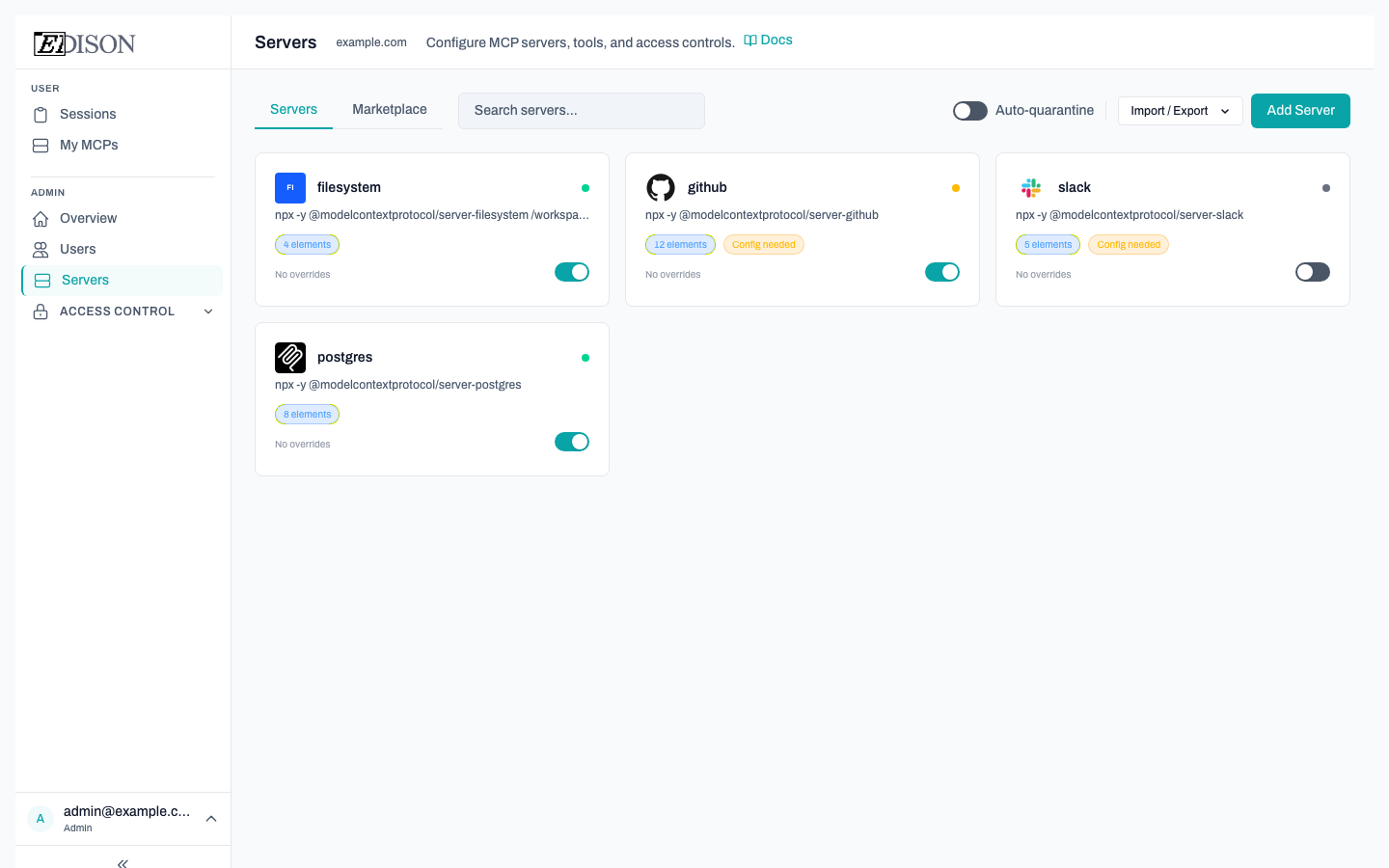
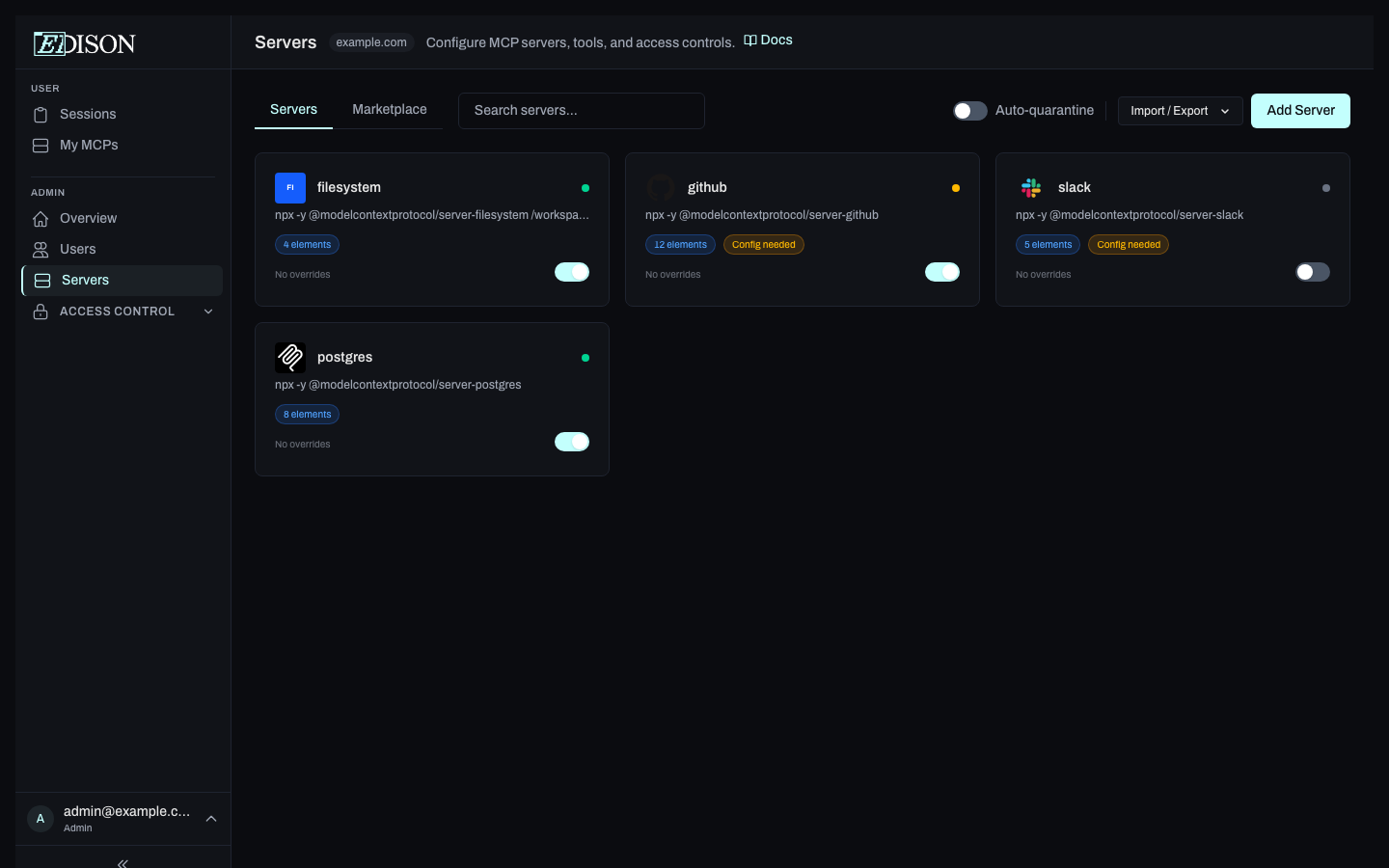
Each server is shown as a card with:
| Indicator | Meaning |
|---|---|
| Green dot | Server is enabled and healthy. |
| Amber dot | Server is enabled but needs configuration. |
| Gray dot | Server is disabled. |
The card also shows the server's command, tool count, and whether it is a built-in server.
Tabs
| Tab | Description |
|---|---|
| Servers | List of all registered servers for your organization. |
| Marketplace | Browse pre-built MCP server templates and install them in one click. |
Adding a Server
Click Add Server to open the creation form:
- Org — The organization domain the server will be created in. Owners must select a specific org from the filter first.
- Server name — A unique identifier (alphanumeric, hyphens allowed).
- Command — The shell command Edison Watch runs to start the server (e.g.
npx @modelcontextprotocol/server).
Click Create Server to save.
Installing from the Marketplace
Switch to the Marketplace tab to browse community and verified MCP servers. Click Install on any entry to add it to your server list with pre-filled configuration.
Configuring a Server
Click any server card to open the inline Configure panel. From here you can:
- Edit the server command, arguments, and environment variables.
- Set template field values (credentials, API keys) required by the server.
- Enable or disable the server.
- Delete the server.
Quick Enable / Disable
Each card has an Enable / Disable toggle in the bottom-right corner. Clicking it immediately changes the server's state without opening the full configuration panel.
MCP Tester
When a server card is selected, switch to the MCP Tester tab in the inline panel to send test tool calls directly to the server and inspect the responses.
Import & Export
Admins can bulk-manage server configurations:
- Export — Downloads a JSON file with the name, command, and enabled state of every server.
- Import — Upload a JSON array in the same format to create multiple servers at once.
Supply-Chain Pins
Edison Watch can pin server packages to a specific version to guard against supply-chain attacks. The Clear All Pins button (admin only) removes all version pins across all servers at once, allowing them to resolve to the latest version on next start.
Only admins and owners can create, edit, or delete servers. Regular users see servers through the My MCPs page.