

Settings
Configure your personal preferences, encryption keys, and integrations.
The Settings page is divided into sections accessible from the left navigation. Admins see additional sections not visible to regular users.
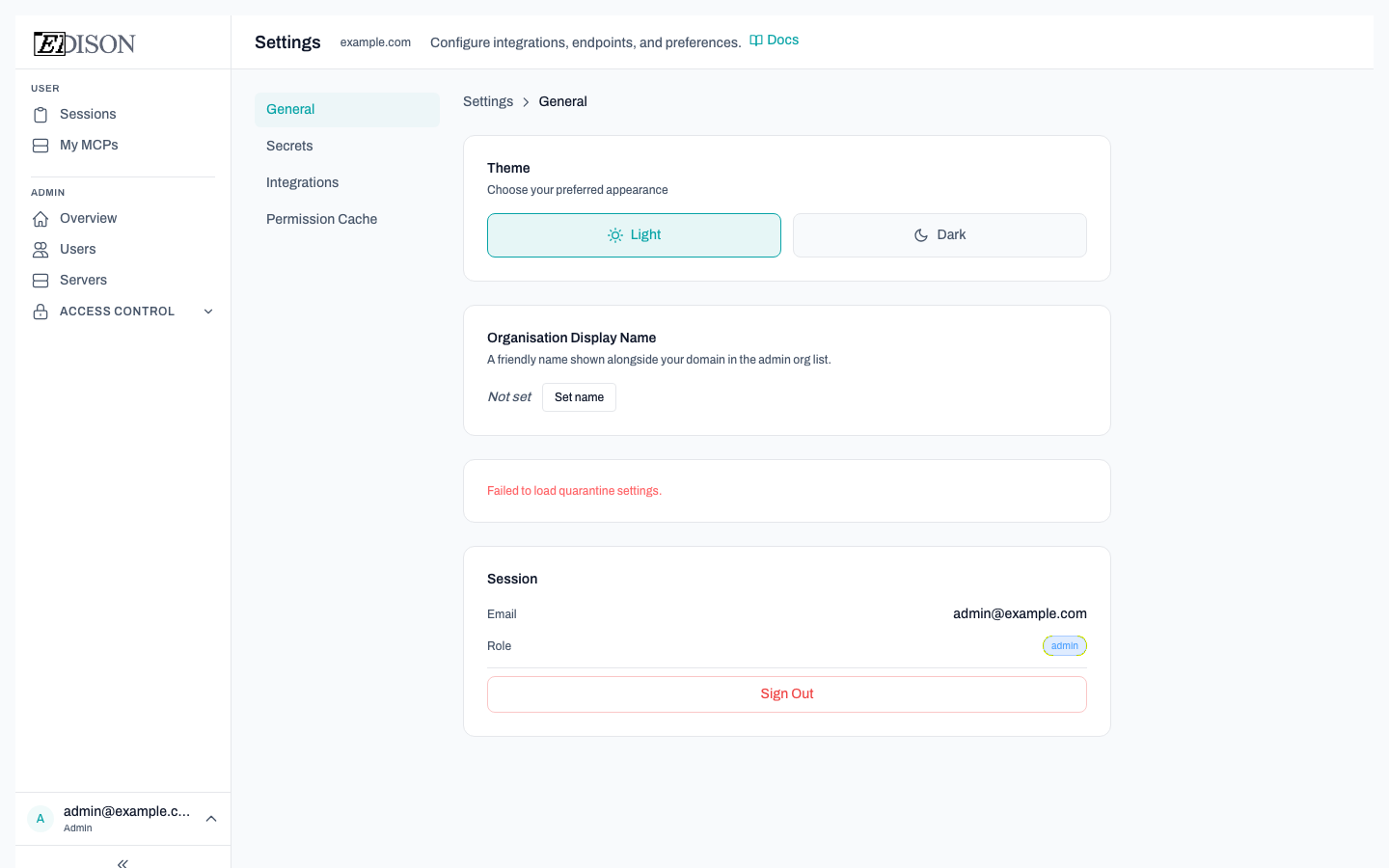
General
Theme
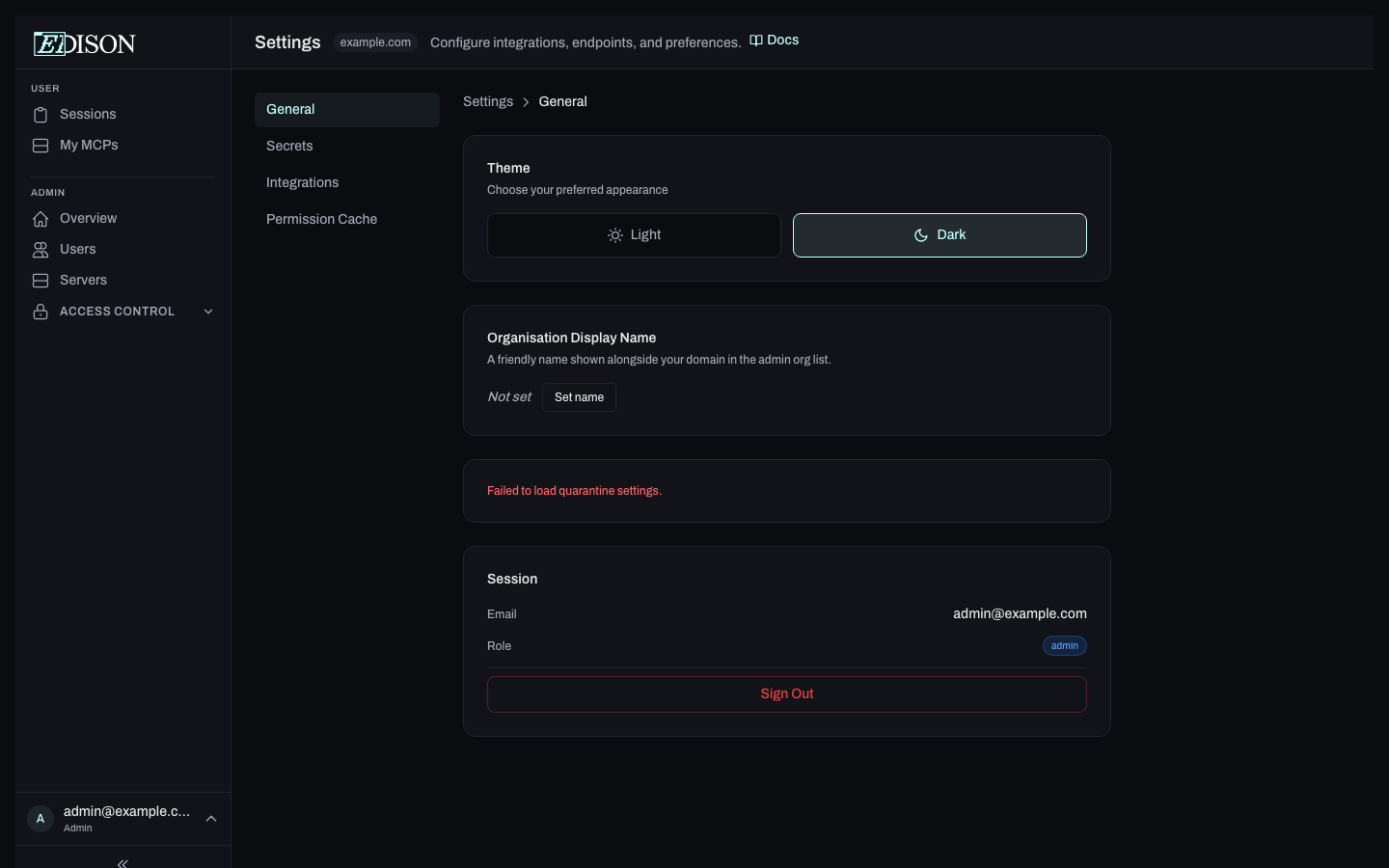
Choose between Light and Dark appearance. Your preference is saved locally in the browser.
Session
Displays your current email address and role. Click Sign Out to end your session.
Secrets
Personal Encryption Key
Edison Watch uses zero-knowledge encryption to protect your MCP server credentials. Your personal key never leaves your browser — Edison only stores a hash.
| State | Description |
|---|---|
| Not set up | No key registered yet. |
| Not verified | A key is registered on the server but hasn't been loaded in this browser session. |
| Active | Key is registered and cached in this browser. |
Setting up a new key:
- Click Generate a new key — Edison generates a 256-bit key in your browser and registers its hash.
- Save the key somewhere safe (password manager). It will not be shown again.
Using an existing key: Click I already have a key and paste your key to verify it in this browser.
Key management:
- Roll Key — Generates a new key and re-encrypts your credentials.
- Reset Key — Removes the key and all associated encrypted data.
Organization Encryption Key
Admins can set an organization-wide encryption key that encrypts admin-set server credentials for all users. Users enter this key once to decrypt those credentials.
Admin flow:
- Click Generate a new key — a 256-bit organization key is generated.
- Copy and securely distribute the key to your users (e.g. via a password manager or encrypted message).
- To rotate the key, click Roll Organization Key and supply the current composite key.
User flow:
- Click Enter existing key and paste the key your admin provided.
MCP Server Credentials
Lists all servers that require user-provided values (API keys, tokens, etc.). Fill in any missing fields to activate those servers for your account.
Enterprise Features (Enterprise only)
This section is visible only to users in enterprise organizations.
PII Obfuscation
Automatically detect and redact personally identifiable information (PII) in MCP tool results before they reach AI models. Obfuscated values are replaced with opaque tokens that are transparently restored when passed back to tools, so workflows continue to function normally.
Enable PII obfuscation: Toggle the master switch to activate obfuscation for your account.
Detectors: When enabled, you can toggle individual PII categories:
| Detector | What it catches |
|---|---|
| Email addresses | Email patterns (e.g. [email protected]) |
| API keys & tokens | OpenAI keys, GitHub PATs, AWS access keys, Google API keys, Slack tokens |
| Phone numbers | Phone number patterns (via Presidio) |
| Credit card numbers | Credit card patterns (via Presidio) |
PII obfuscation is a per-user setting. Each user in an enterprise organization can enable or disable it independently and choose which detectors are active.
Integrations (Admins only)
Configure connections to external AI tools and services. This section generates the configuration snippets and URLs your AI clients need to connect through Edison Watch.
Permission Cache (Admins only)
Edison Watch caches access-control results to improve performance. If you change role assignments or permissions and the changes don't seem to take effect immediately, clear the cache here.
| Field | Description |
|---|---|
| Cached entries | Current number of cached permission results. |
| Clear Cache | Removes all cached entries so permissions are recalculated fresh. |
Encryption keys are stored only in your browser's memory and are never sent to Edison's servers in plaintext. Clearing your browser data will remove the cached key — you'll need to verify it again on next login.