

Policy Rules
Create and manage CEL-based policy rules that control AI tool behavior.
Policies are rules that Edison Watch evaluates against every AI tool call in real time. They can block actions, tag sessions, set access-control levels, and more — all without changing AI tool configuration.
The Policies View
Go to Policies in the sidebar. The page is split into two panels:
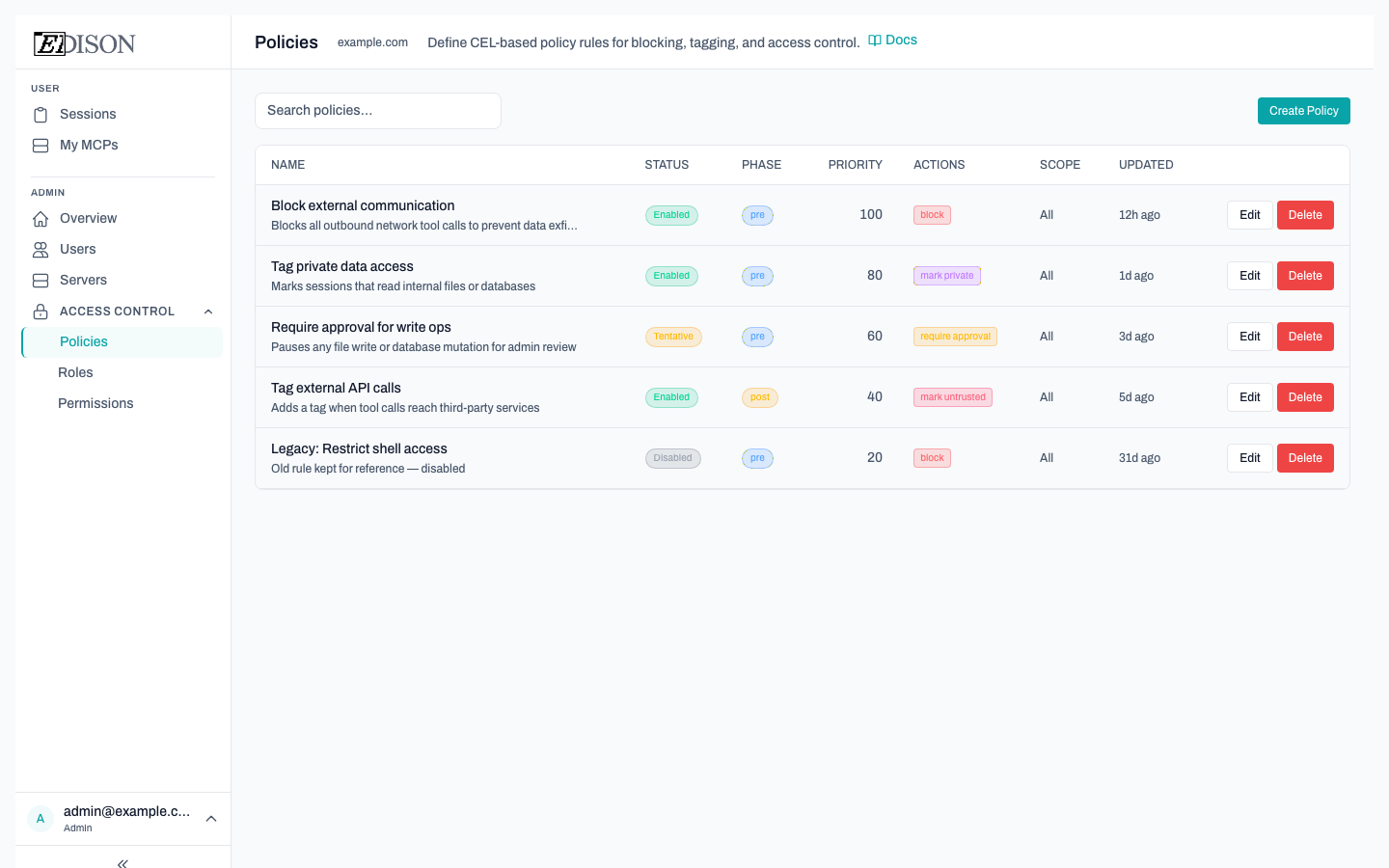
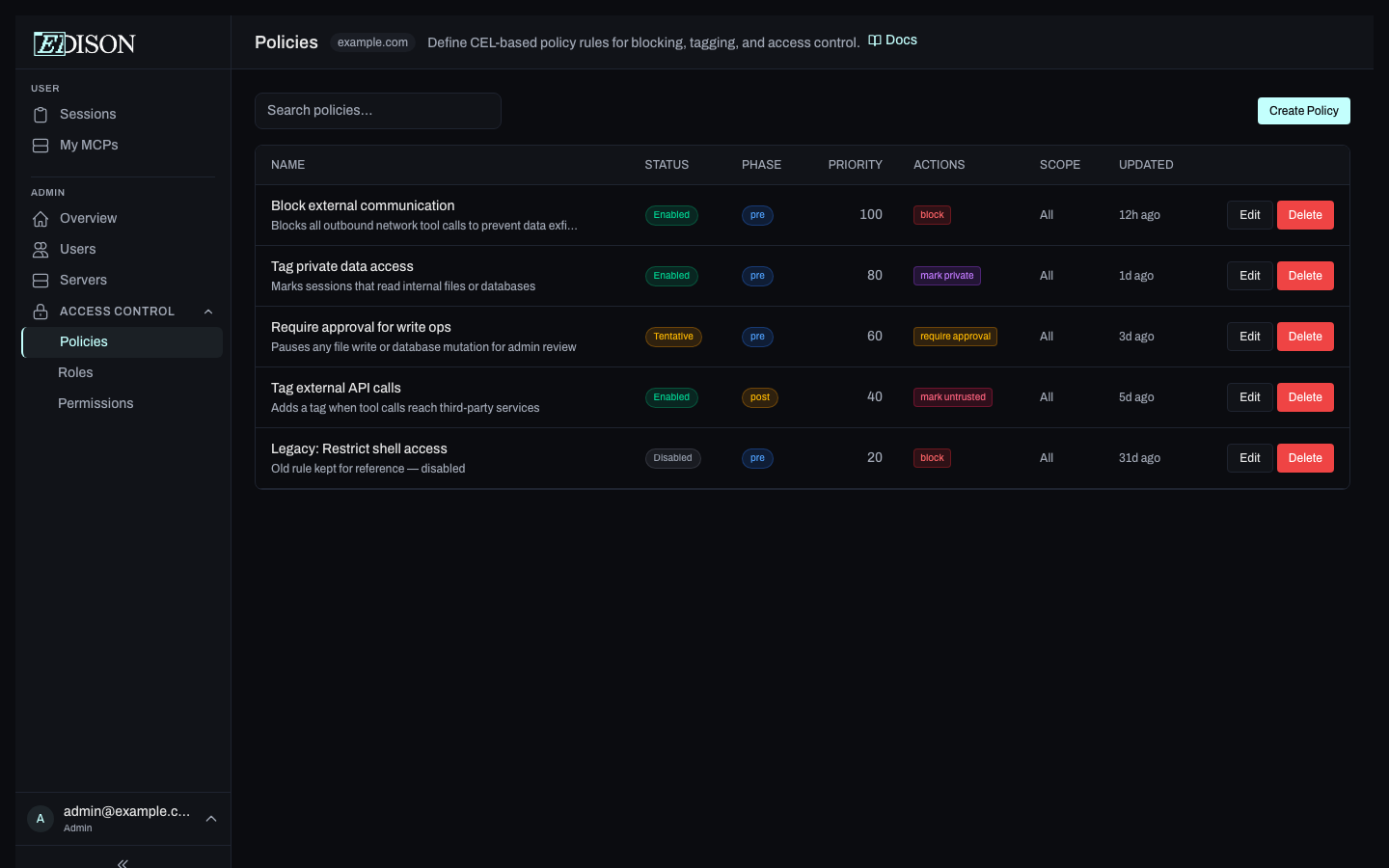
- Left sidebar — list of all rules, grouped by status, with a search box.
- Right panel — details for the selected rule.
The summary strip at the top of the sidebar shows counts of Enabled, Tentative, and Disabled rules at a glance.
Rule Statuses
| Status | Meaning |
|---|---|
| Enabled | Rule is active and enforced on every matching tool call. |
| Tentative | Rule is evaluated but only logged — actions are not applied. Useful for testing a new rule safely. |
| Disabled | Rule is stored but never evaluated. |
Rule Phases
Each rule runs in one of two phases:
| Phase | When it runs |
|---|---|
| pre | Before the tool call is executed. Use to block or flag the call. |
| post | After the tool call completes. Use to tag sessions or set ACL levels based on the response. |
CEL Expressions
Rules are written in CEL (Common Expression Language). The expression is evaluated with context about the tool call:
If the expression evaluates to true, the rule's actions are applied.
Actions
| Action | Effect |
|---|---|
block | Prevents the tool call from executing and returns an error to the AI. |
mark_private | Flags the session as containing private data. |
mark_untrusted | Flags the session as containing untrusted external content. |
mark_write | Flags the session as having performed a write operation. |
set_acl | Sets the ACL level of the session (PUBLIC, PRIVATE, or SECRET). |
add_tag | Adds a key-value tag to the session for filtering and auditing. |
allow_override | Explicitly permits the call even if other rules would block it. |
Rule Scope
Rules can be scoped to specific principals and resources:
- Principal scope — Target all users globally, specific roles, or specific users.
- Resource scope — Target specific servers, element types (tools/resources/prompts), or name patterns.
Rules with no scope apply to all principals and resources.
Creating a Policy
- Click Create Policy in the left sidebar.
- Choose a template from the template picker, or start from scratch.
- Fill in the rule name, CEL expression, phase, priority, and actions.
- Set the status to Tentative to test the rule before enabling it.
- Save the rule.
Editing and Deleting
Select a rule in the sidebar, then click Edit or Delete in the detail panel.
Priority
When multiple rules match a tool call, they are evaluated in priority order (highest number first). Use priority to control which rules take precedence when they conflict.
A block action in a pre-phase rule stops the tool call immediately. Make sure to test new blocking rules with Tentative status first.